Editing Tips
Most of you have sites with a News page. This is the basic blog model where you can quickly go into your site and create a Post (news item) which goes to the news page, and if supported the news item is also notified through the sidebar on your site. You did not need to tell the post where to go.
The benefit of this method of propagating news is that it is all pretty much automatic and very quick and easy to do. Each new news item goes to the top of the page with the others moving down.
Going forwards in time
Once you have been doing this for some time you will come across situations where an old post that is now buried in your site is updated, and you would like that post back at the top of your news page.
This can be easily achieved by editing the date of the post. The date ultimately controls the order the posts are presented on your site (with the exception of sticky posts which I will comment on later).
First locate the old post, open it in the editor and made the changes you want to make, and verify it looks ok. Next look at the top right corner of your screen and you will see it says Published on (month), (year) @ (time) edit. As in the picture below.
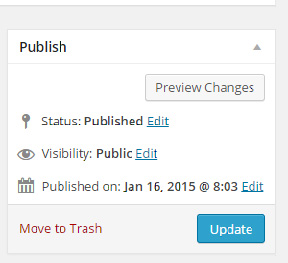 To change the time click on the Edit link and change the date to today’s date and the time to the current time. Then update the post. This will reassign the post to the top of your News page again. Over time it will drop down again, but you have provided an update for your readers based on the new information.
If you already have a sticky post on your news page then the modified post will appear underneath it.
Sticky Posts – What are they?
Sometimes you may wish to place an advert on your news page, say for a volunteer, employee or an event. If you are moderately active and posting something each week then you may want your advert to remain at the top of your news page and not move down over time.
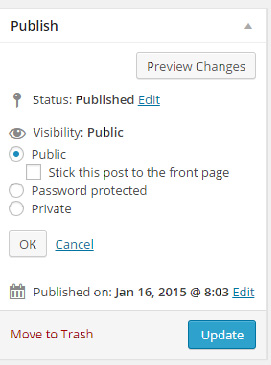 You can do this with a sticky post. In the top right corner of the Posts page there is a Visibility item and an edit link beside it. Click on Edit and it expands as shown in the image to the left.
If you check the box which says “Stick this post to the front page” and then update your post then it will appear at the top of your news page.
It will remain there for as long as you leave this setting untouched.
Do take care with this setting for several reasons. If you have too many of them the news page will start to look like a static page because readers may not bother to scroll down the screen too far. So use it sparingly, and don’t leave something there for too long.
Additionally the way the sticky posts are handled is also dependent on the base template that is in use on your site. Not everyone behaves in exactly the same way. So do check it first to make sure it works. Notably anything based on the WordPress TwentyFourteen Templace behaves in an unfriendly way as it carries additional formatting with it. So sticky posts are not going to work for everyone.