 Many of you running charitable organisations will have a dedicated primary email address that you use for incoming, and sometimes outgoing email. Over time this email address becomes “known” to spammers and you start to receive unsolicited email on it.
While looking at the hosting for many organisations I can see huge email boxes that are full of this type of content. (I only see the size of the mailbox, not the mail). Following the issues I faced with my main email account in October, I decided to look into methods for reducing it, redirecting it, and eliminating it. Some of these are available to you through the hosting you use. I will explain the pro’s and con’s below, and how you can “non destructively” experiment to see how spam management may work for you.
Why non-destructive?
Largely because the methods used are through a script that runs on the server that analyses incoming traffic and places a rating on whether the mail is spam. At the early stages of this, you do not want to delete everything automatically in case something is assigned as spam but isn’t. So the process I suggest here is just one way of managing it and sorting it. Is it 100% foolproof? No, but in my personal case it has significantly reduced the spam, and number of mails I need to open each day. That can only be a good thing.
Spam Assassin
To do this you need to go into your control panel for your account. To access the control panel, you need to generally go to here: http://yourdomainname.org.uk/cpanel (replace “yourdomainname.org.uk” with the address of your website). This will take you to the login screen for cpanel or control panel. Note this is different to logging into your site. If you have not been there before, or need the user name and password, contact me and I will provide it to you.
Login to cpanel and look for the group of icons that relate to Email.

Then click on the icon for Apache Spamassassin. You will see a screen similar to the one below. (Click on the image below to see a larger version of it.)
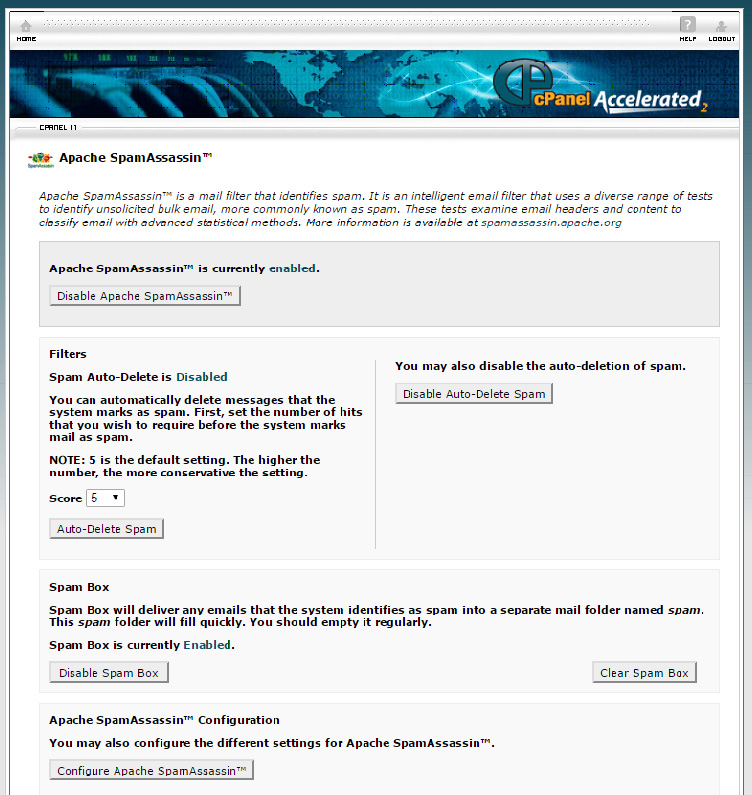
In my case I have already enabled it. So click on the button at the top to enable Spam Assassin for your account. Leave the other things as they are for now, you can make some choices later. Leave the score at 5. In my case it seems to pick up most spam with a few minor exceptions. Where it says Spam box. Leave this off for now.
What happens now?
You will still receive spam messages, however they will have the subject changed with the text SPAM appended to the title. That is all this is doing for now. Leave this running for a few days, so you can get a feel for whether real spam is being caught out or not.
If you are reading this for the first time, stop here after you have made the changes and just watch your inbox for a few days. If you are happy that it is appropriately marking messages as Spam, then return, and we can look at redirecting spam to somewhere else, a holding account.
If this has not worked for you, or you are concerned that you may miss things, simply turn it off.
If this is all a bit too complicated but you are interested in reducing spam messages and you need some help, please contact me.
STEP 2.
I assume you have returned to here because you have observed that Spam messages are accurately being captured.
Next we need to direct the spam to somewhere it can be reviewed.
Because your mail now carries information from Spam Assassin, it can be filtered and redirected. The method I have used here redirects it to a folder in my email account called SpamAssassin.
To do this you need to go into webmail for your email account. (http://yourdomainname.org.uk/webmail) or you can do this through control panel and select the mail account and access it via cpanel. (note you do not need the password to configure the email account using this method).
Once you have got into the webmail account, at the top of your screen there is a set of options: Compose, Addresses, Folders, Options, Search, Help. Choose Folders.
Where it says Create Folder enter SpamAssassin. Then click on create.
You have now created a folder for SpamAssassin, so now we need to create a filter which will redirect mail marked by Spam Assassin to that folder.
Create an Account Level Filter.
Go back to Control Panel, and choose Account Level Filter icon in the mail group.
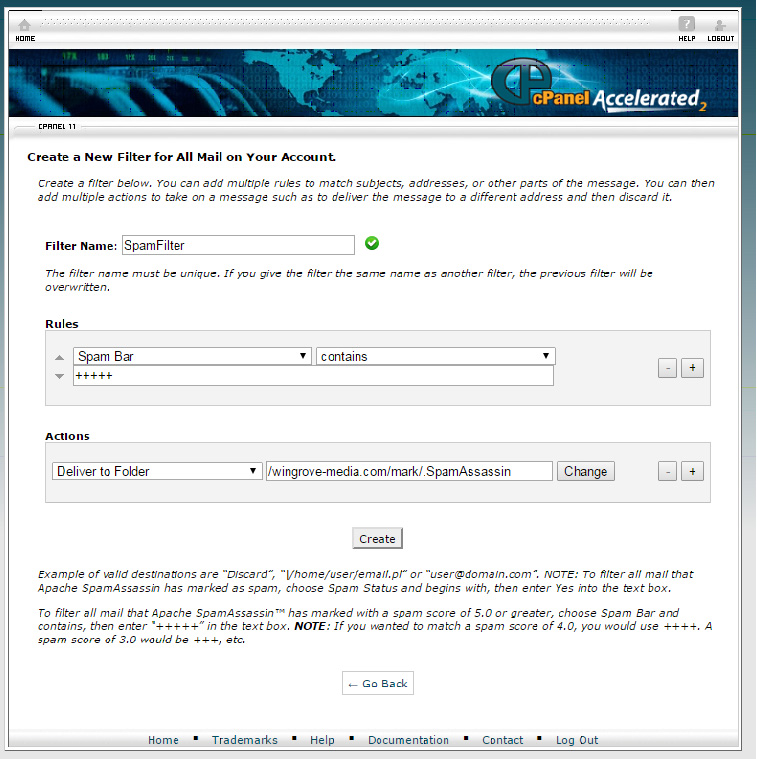
You can create a filter for all mail here. First overwrite the text in the filter name and give it the name SpamFilter. In the rules section choose Spam Bar from the drop down, then Contains, then in the drop down below that add +++++ (five plus signs).
Under Actions, choose Deliver to Folder, then choose the folder where you want it delivered too. If you choose browse here, you can locate the mail account and the folder you just created called SpamAssassin.
Finally Save the Filter. (Click on the example below for my version).
What happens now?
In theory, mail that is not detected as Spam with a score of 4 or less continues to be delivered normally to your computer system/ hand held device, tablet.
Mail that has been detected as Spam with a score of 5 or more is now held in a special folder on the server. So at this stage you have not lost it, or deleted it.
However because of the volume of spam messages you do need to remember to review it from time to time. I would recommend checking at least once a week if not more frequently. Do not allow this folder to grow too large, otherwise your mail box will no longer function. Once you have checked it a few times, you will know whether the system is working for you.
STEP 3 (Repeat frequently!)
Housekeeping
Every few days login to webmail, go to the account you have configured this for, and check the contents of the SpamAssassin folder.
List all of it, scan through it to make sure nothing is in there that should not be in there and mark them all for deletion. Then check the bypass Trash button and delete everything.
If you have something in there that is not spam. Action it locally.
HELP!
I can appreciate that for many of you all of this seems a bit too complicated and venturing into a world full of problems. If you are not confident in setting this up, contact me and I can help. Even if it is just to try the process. I do understand that junk email is an increasing problem.
Variations on the theme
If you read about the issues I faced while on vacation (10,000 emails in 24 days sent from a wordpress plugin), you will know that I managed to add a filter to redirect this traffic to another email account. This looked for a key phrase that was common to the 10,000 messages I received. This has continued to work using the Account Level Filtering.
One of the issues with Spam, certainly some of the rubbish I get, is that they appear to be newsletters that I have never subscribed to. They all carry an enticing “unsubscribe link”. However, on close examination, all of the links in the newsletter go to the same place, therefore it is probably not an unsubscribe link. Be particularly suspicious of any link going to a file ending in .php. This is a script running on the server. In most cases they are harmless, however in some cases you are giving permission to execute the script which may do something to your PC or device. If you are not sure. Don’t follow them.
It is also worth bearing in mind that if I was to “unsubscribe” I have just confirmed that my email address is a legitimate one! So the chances are I will continue to receive more mail. Precisely that has happened when I moved over to a MacBook Pro. In that case the default settings on mail downloaded the full newsletter. Because it also downloaded images from the server, the spammer, (or more precisely their systems) knew that the newsletter had been opened and therefore my address was a legitimate address. I did not realise at first, however the spam “newsletters” then started to increase. For that reason I never automatically download any images in a newsletter or other html rich email.
So how can I get rid of these?
If, as in my case, I get the same messages each day/ week, then hold a few of them, and see if there is any common text in them. Very often the same messages come from different IP addresses so you cannot filter on that. However some aspects of the content will be the same.
You should be able to filter these repeat offenders as well, or at the worse case, reduce them from polluting your inbox.