Many of the organisations I work with manage social media marketing through Facebook and Twitter. I know from my own experience that you reach a different and frequently younger audience through Facebook and Twitter compared to relying on people visiting your website.
For my local village association we have around 900 subscribers that receive a newsletter each month, and around 350 subscribers to a Facebook group. By checking the demographics in Google Analytics we know that the majority of website visitors are aged 35+. We reach a younger audience through Facebook. The behaviours are different, the conversations are different on Facebook compared to the discussions associated with Posts.
I have recently installed two plugins that repeat the Facebook and Twitter activity on your website. They are easy to set up provided you are logged into your respective accounts. On this article I am going to refer to Twitter.
Where to put it?
Where you put the feed is dependent on how much space you have on your site, and what sort of template you are using for your site. Typically Tweets are short, and do not need a lot of space. So if you use a full column width to display them, you may not be using the space efficiently.
If you have a site where you can control rows and columns then you could use a full page width and divide it into two. Place the shortcode for the Twitter plugin on one side or the other and use text on the other side, or a Facebook feed. But first let’s get the plugin installed.
Adding the plugin to your website
Go to Plugins and search for: Custom Twitter Feeds by Smash Balloon. Install it and activate it.
Next log into Twitter.

Next go back to your website, login as an administrator and go to Twitter Feeds in the sidebar menu, and click on the big blue button at the top. This part is really clever because it configures the application to work with your twitter account, you don’t have to dig out an access token and Access Token Secret, it does it for you.
I left everything else as a default. Save the changes.
You may wish to limit the height of the Twitter Feed, you can do this by clicking on the customise tab.
Set the height at 600 or 800px. This will create a window and you can see the twitter feed in the window and scroll up and down.
Shortcode
So far you have used mostly default settings and connected the website to the Twitter account. The application creates a “short code” which you can place somewhere on your website.
To get started I suggest go to the bottom of your home page, if you have a horizontal line and some navigation at the bottom of your home page place the short code just above that, but below where the main body content ends. The short code in this case is [custom-twitter-feeds]
If you place that text in your website it will replace it with the twitter feed after you save your page and then view it.
Example
Below is a screen shot from Home-Start London website. In this case the template is based on Divi which gives the user a lot of control in the layout of the site. In this case I have divided the news page to show posts on 2/3rds of the width of the page and the right most third is reserved for the Twitter feed. It is also limited in terms of the height.
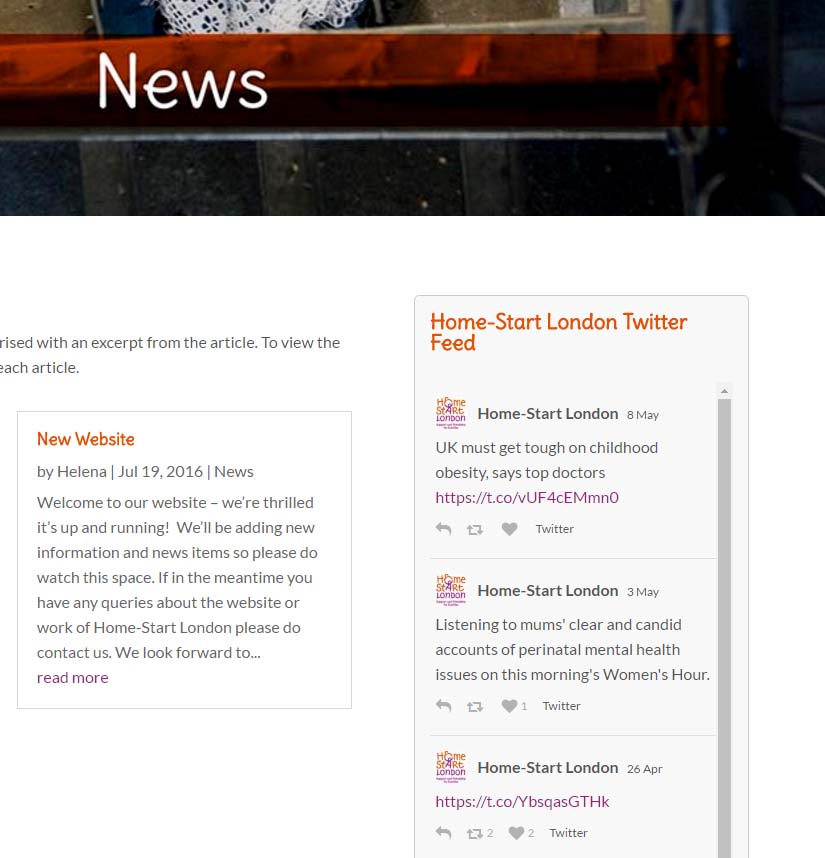
I placed a pale grey border around the twitter feed and a very pale grey background. This helps to make it stand out and differentiate it from the main news area.
You can visit the actual page by going to here. HSL News page