What is a Favicon?
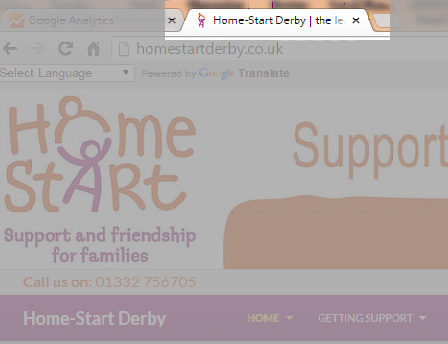
A Favicon is a small image which may appear in the browser tab as in the example above to the left of where it says Home-Start Derby…. It is created from a logo. I have created these for many sites in the past, they are nice to have but not essential.
However there are other related icons that are requested from a website for “favourites” on devices such as the iPad and iPhone. These are larger, but can be based on the same image. They frequently come up as “page not found” in error logs on websites. I do not generate these because it has not been particularly important to do so. Most of you will be unaware of them.
Part of the issue is how long these things take to create and add to a site, which is why I have not created all of them in the past.
But times change….
One of the features that has just been added to the WordPress framework is the ability for you to create these very easily and quickly. That being the case, it is worth doing. What you will end up with is a set of buttons that can appear on mobile devices representing shortcuts or favourites marking your website, plus the little icon in the browser tab as shown at the top of this page. You cannot see these as such, they are embedded in the website as a resource available to requesting service providers such as a web browser.
Tutorial
What you will need: A 512 x 512 pixel image of your logo or something that represents you. This will be scaled by WordPress to create several icons that will appear on various devices should they be requested.
For Home-Start Users
If your site is a Home-Start site I have prepared a logo file for you. Click on the image below and save it locally to your computer.

For everyone else
If you have a logo or wish to create one, then you can click on the image below which is an empty square image which is 512 pixels x 512 pixels. This is the image size which is needed for this exercise. Once you have downloaded it, open it in an image editor, erase the grey background and my text making it white and then place something into that space without going near the corners. Retain the image dimensions and save it as a JPEG file. I recommend not using a lot of compression to do this, so the file size might be say 70kB for example which is fine.
Once you have your icon prepared save it somewhere safe in case you need to change it.
Follow these steps
Log in to your site.
Go to the Dashboard and select Appearance and then Customise
A menu is present on the left hand side which has a new entry called Site Identity
Click on this. You will see three pieces of information.
a) Site Title. This is the name of your site, it should be something you recognise. Google will use this is site searches.
b) Tagline. A short statement about who you are or what you do. Google uses this too.
c) Site Icon. This is new and what we are going to change.
Your screen should look similar the one below.
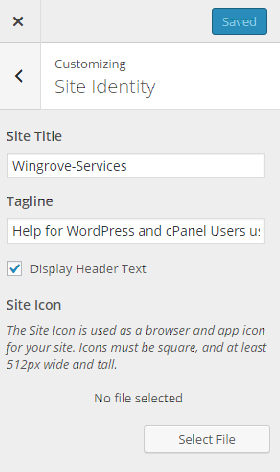
Click on Select File and upload your Icon and then follow the instructions. It will add your icon to the media library, then select it. The screen will return with a page that shows the icon you have uploaded.
You now need to click on Save & Publish to publish your changes. Once the process completes you should see a very small version of your icon in the browser tab.
Now that might seem like a small return for the effort. However if you now go to an iPad for example and open your website, you can add it to Favourites and you will see a larger version on the screen. If you have used your logo then you can see that it reinforces your branding, showing your clear identity.
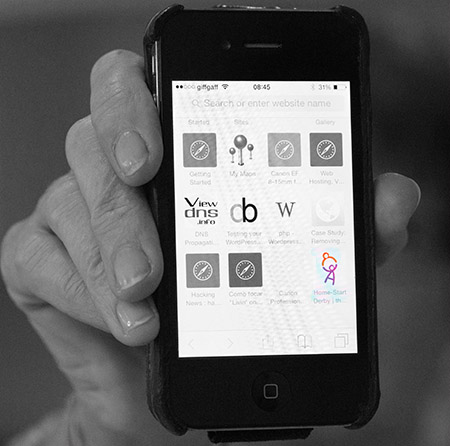
The image below is where I have saved this website as a favourite on my smart phone. You can see the icon in the bottom right. It is based on the Home-Start icon we started off with on this tutorial.
Things to think about
I quickly created a logo for Wingrove-Services. What I created looked ok in Photoshop because it was 512 pixels wide and tall, however you can see at the top of this page in the browser tab something that is difficult to make out when it is small. The best solution with all logos is to keep it simple. The simple ones such as the Home-Start one work because they are simple!
You may already have a Favicon, but not the icons that can be used on a mobile device. On some sites I used a plugin to create your Favicon. I have gone into a couple of sites where there was a Favicon created the old way and replaced it using the steps in this tutorial. It seems to work ok, if you already have one and try to follow this tutorial and it does not work let me know and I will remove the conflicting plugin from your site. Contact me in the normal way please.