By default a wordpress installation uses a method of sending mail that does not use a mailbox to send the message and does not encrypt the message. Email cannot be confirmed to be end to end secure unless you know the receiving or sending person is using encryption and is set up correctly; you can encrypt mail in the places where you control email so that it is encrypted from the website to the mailbox. If it is your mailbox, and you know that your mail client is set up correctly with encryption, then you have end to end security. If the website is running over SSL and the address starts with https:// (98% of them are now), then a user entering information into a form is also encrypted. So the path from the users browser, through your contact form, from the website to your receiving mailbox is encrypted and cannot be intercepted as plain text.
How do I make the changes
Log into your website and go to Plugins.
Seatch for WP Mail SMTP, locate it and install it.
Go to your control panel for your hosting. (you may not have been there before, or know about it. Each account has a control panel, contact me if you have not got access and I can grant access to this area and you can set up a new email account and administer all of your other mail accounts if they are with me.)
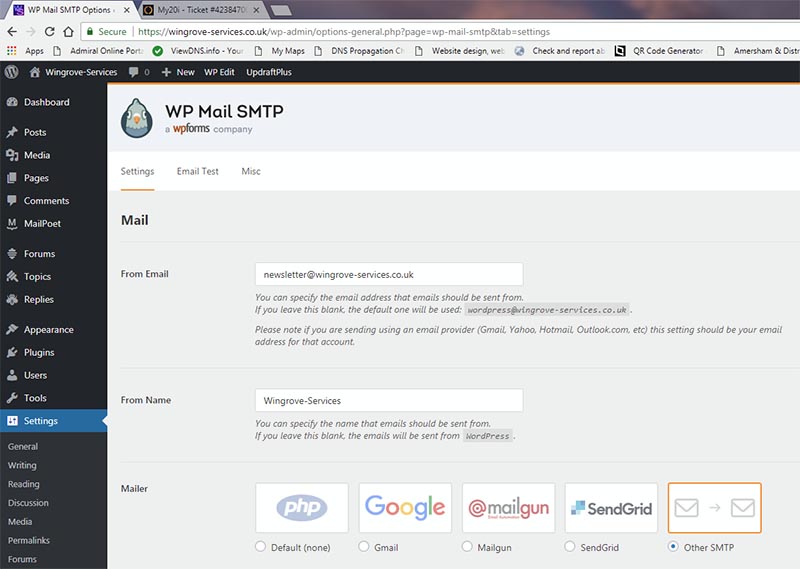
In my case I set up a new email account newsletter@wingrove-services.co.uk, the system issued me with a password which I retained. Updated the mail box. You have to wait up to 30 minutes before you can use it.
Going back to the wordpress installation go to Settings, WP Mail SMTP and do the following:
- Enter the From email address: (in my case; newsletter@wingrove-services.co.uk)
- Enter a From Name: In my case the name of the site Wingrove Services.
- Choose Other SMTP for the mailer.
- Check the return path box (This means the mailbox will receive any bounce back messages)
- In the SMTP Host box enter smtp.stackmail.com
- In the SMTP port box enter 587
- In the encryption box select TLS
- Turn authentication on
- In the SMTP user name enter the full email address (in my case newsletter@wingrove-services)
- In the SMTP password box enter the password you were issued with from the control panel for the account.
- Then click on save settings.
Testing
At the top of the form there is an email test tab.
Send a message to yourself. This will prove it is working. (remember you can only do this 30 minutes after the account was set up).
Now messages from your site that would have used the native WordPress mail function are now sent through an email account.
Other Resources
See this article from the author of the plugin for more details: https://wpforms.com/docs/how-to/