Using Google Sheets for online forms
I have been looking at using Google Docs which are a set of online web based applications. Currently you can create forms, spread sheets, presentations and text based documents online. They do not offer everything that is available with MS Office however they offer greater flexibility to website users because you do not need to have MS Office installed on your computer or device.
You can download a PDF version here.
The main problem is that if you have a moderately complex form it will generally mean it has to be presented in one of the following formats:
- PDF – Print it, fill it in, scan it and email it, or post it using snail mail.
- Word – Assumes the user has MS Word, this cannot be assumed unless you intimately know your users have access to the MS Office Suite. (for example iPad, or Mac users).
- Excel – Assumes the user has MS Excel, this cannot be assumed unless you intimately know your users have the MS Office Suite. (for example iPad, or Mac users).
- A web based form – While these can be made to look similar to the forms you are familiar with, once they are submitted in the form of an email, they are presented as text. So lose the formatting you see online.

I frequently am asked if forms can be filled in and exchanged electronically. There has not been a universal method of doing this that ticks all of the boxes; …..perhaps until now.
Some time ago Google launched some web applications for common editing processes. All you need is a Google Account to access these, which is free. They give you access to a wide range of services beyond the scope of this article. What is of interest here is Google Docs.
Working with a Home-Start organisation I have been exploring how a largely paper based or MS Word format form can be created electronically, filled in by anyone, and submitted back to the requesting office. This could replace an existing system, or run in parallel with an existing system to test the process or offer an alternative.
Cloud
When you take out a Google Account, you are given some space in the cloud. All this means is you have some secured space (around 15GB) which can be used to store documents. Because it is in the cloud (aka Internet) and not held locally, it is easy to share documents should you wish to do so. You don’t need to send the document, just a link to it.
What about Security?
A Google account has several security features in it, which allow a fairly robust system to protect your assets. This includes additional security questions, the ability to prevent an unauthorised browser from accessing your account without validating the access using your mobile phone and a number of other measures. The system all runs over an SSL (Secure Socket Layer) connection which is what banks use, so an eavesdropper could not steal your credentials. As with all of these systems though a strong password is essential.
There is another element with regards to security which is less easy to resolve. While it is possible to electronically and securely sign something, the systems that sit behind this are very complex and very expensive to implement. So for the purposes of this discussion document one should assume that the document may be electronically passed to a user, or referrer, they fill it in and pass it back. The service organisation can then pick up the document with everything added apart from a signature. You would need to resolve that by printing it out which is how your former system worked anyway.
How might this all work?
On your website you have a form which invites referrer agencies or people wishing to self-refer sends a message through email to request a form. Most of you have this capability built in now.
The administrator receives the message and signs into their Google Account (for their parent entity, not a personal one). Locates the master document, this is essentially a blank form. They copy it and give it a unique name or reference. The unique “named” document can now be shared by creating a link to it. The link is sent back to the referrer. The referrer uses the link to access the document in any browser, using any operating system. (Practically speaking I have found it is not quite as easy as this, initial tests show that you need an up to date browser, if you do not have an up to date browser, then you cannot edit the form, so make sure your systems are up to date!) They can now edit the sheet and fill in all of the details. The only way the document can be shared is either through multiple people having access to the Google Account (which you do not do), or sharing the link to the form, you would not do wish to do that, and you are reliant on your referrer not doing this either. The link is private between the administrative office and the referrer.
Once the form is completed the referrer advises the service administrator by email. The service administrator can now access the Google Docs directory, in there they will find the unique form they created.
They can check through it and verify that everything is entered. Once that is resolved, the form can then be exported as an Excel sheet, or a PDF (or other formats). At this point you are exporting the document from Google to your internal system. Now you can print it, and get it signed, or file it.
You can also delete the electronic version of the form that was in your Google Drive. It is no longer needed. This is added security.
Using a spreadsheet
There are additional benefits in using forms based on Spreadsheets. You can use standard spreadsheet functions to validate input. So where you need someone to make a choice of say 5 things, you can list those 5 things when they click on a cell. They then select the appropriate one. This will speed up form processing online as people do not need to write the text in. It also ensures that the content is consistent should you need to create statistics based on the information provided.
Two examples:
I have built two examples, one is an expense form. This carries the advantage that the expense form works like a spreadsheet, so it also calculates the totals and works out mileage costs based on a fixed rate.
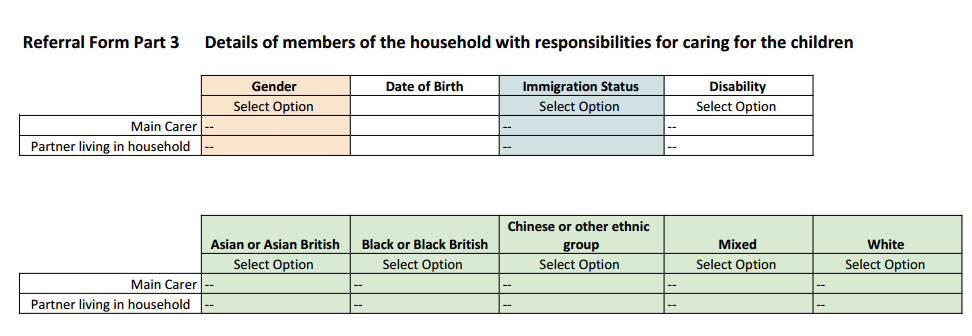
A second example is a referral form. In this case there are a lot of Yes/ No answers, and also selections based on a set of answers for various parts of the form. This is a standard spreadsheet function and will help to accelerate any applications.
Contact me for more information and access to these forms.
Further research
Portability and the need to enter information on site or while on the road is another important aspect. While I have demonstrated that anyone with a personal computer and an up to date browser can open a link and load a form in the browser, edit it and send it, this requires a moderately expensive asset to do this.
Google Sheets on an iPad.
I have found that it is possible to load the referral form on an iPad, and while I don’t know for sure yet, it is probably possible to do this on an Android tablet device provided Google supports it. In the iPad case, you need to locate and download the Google Sheets application which is free, one this was loaded it was possible to navigate the form and type information into it. The online document is updated as you type in. The only catch with the iPad version is that you have to have a Google Drive account (and gmail address), both of which are free. This is not a show stopper where the referrer, or if it is a company asset; the iPad, has a gmail account associated with it. However iPads are quite expensive to acquire for a charity.
Even lower cost: Chromebooks

I am also going to take a look at Chrome Books, these are not Personal Computers as such, they run a stripped down operating system, and tie you into the Google suite of products. They claim to be a lot faster than a standard laptop because they use solid state memory rather than disk drives. They also have a battery life that can run to 8hrs. They turn on in a few seconds, automatically update themselves, and do not require any anti-virus products.
You have available the ability to read MS Office documents. But you cannot edit them. You do however have a document editor, presentation editor, and a spreadsheet editor included. Couple this to a gmail account, and you do not need Outlook. As with the Apple suite of products there is a Google Store and you can download free and paid for apps. The benefit of the Chrome Book is that it potentially offers a much lower cost entry point than a Personal Computer with MS Windows and everything else that goes with it. They also come with 100GB of storage in the cloud for two years. It represents a potentially new way of working for a charity which would significantly reduce the equivalent cost of acquiring and maintaining Windows PCs if you consider that for most people they only require the following: a browser, a document editor, a spreadsheet editor, a presentation editor and an email application. All of this is included in the price.
Returning to Forms
Now, speculating here, if an organisation purchased say two Chromebooks which start at around £150 each, and they acquired two broadband mobile data interfaces (around £5 per month) then the Chrome Book could be used as the mobile device to fill in applications forms online at a client’s premises or at some independent location in the field. This would be lower cost than acquiring iPads, or some other tablets. It may be possible to receive a grant to cover this cost.
I will return to this article when I have done some more research. (12/11/16)