Why can I not see my edits?
On some sites I have started using a Cache plugin. A Cache in computer terms is the temporary storage of something that has been built, so that the next person that needs it can pick it up quickly, it does not need to be rebuilt.
The times we are talking about here are measured in 10’s of milliseconds, but they all count.
WordPress is a content management system. The backend is powered by a database. When you request a page, the page has to be built before it is “served” to your browser. This means it is slower than a hard coded HTML page or website, which is built and ready to go but not dynamic.
Caches also work within your browser as well to accelerate the browsing experience. If I have the stylesheet for a website already in my browser because I have visited the home page, I don’t need to download it again the next time I open a page. This saves time as well. The browser makes these decisions, it is transparent to the user.
However while using a cache accelerates the user experience it can sometimes get in the way of editing. Recently I have seen examples where I am pretty sure I have edited something but I cannot see it on the website. Through experience, I know the item has changed and can prove it by using another browser. However it is very frustrating, particularly if you are a newbie, and not that familiar with how these things work. So read on for some tips……
WP Super Cache
So if you cannot see your edits in your browser when viewing the live site check in the plugins area of your site if there is a cache plugin installed.
The one I have recently been using and noticed a problem with in terms of keeping up to date with edits is WP Super Cache by “Automattic”. I want to stress here there is nothing wrong with the plugin, it is doing what it is supposed to do, but what you may find is your edits do not appear to have been made to the website if you are using this plugin. Check the plugins folder and see if you have it.

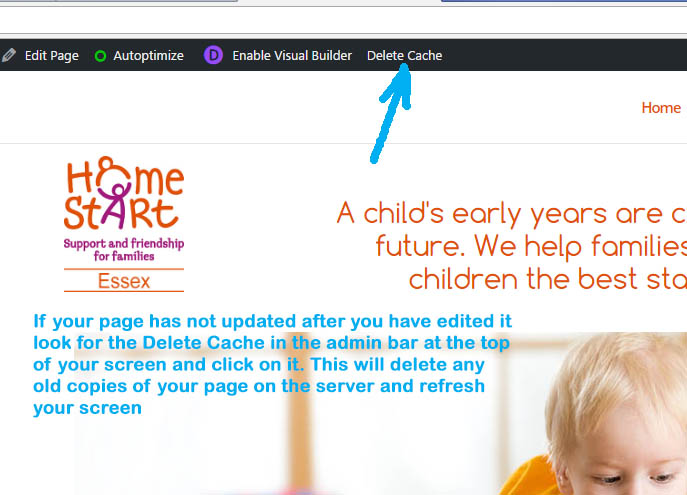
It is likely that your edits have been made, but your browser has pulled an old copy of the website up because of the cache plugin. Look on the black horizontal administrative bar across the top of your browser and there is a button there which says Delete Cache. Click on it, this will delete the cache at the server and force your browser to download a new copy. Your edits will now be visible.
Going Incognito
You could also edit your site with your browser in Incognito mode. This tends to stop things being stored on your computer, so gets around the problem. To switch Google Chrome from Normal mode to Incognito click on Ctrl + Shift + N
This will force the website to download into the browser, so any changes will be reflected in the new user view. This is a good way to sanity check your site if your cache is getting in the way.
The other way is to open another browser (not the same one as you are using) and see if the version of the site you can see is different.
If all else fails
I know how frustrating it can be, so if you are struggling to remember to keep deleting the cache, go to the dashboard, plugins and locate WP Super Cache and turn it off (deactivate it). When you have completed all of your edits and just prior to leaving the website, turn it on (activate) it again. If you forget to turn it back on, your website will still work OK, just a bit more slowly.