If you go to Appearance and Widgets you come to a page where you can edit the sidebar and footer areas of your website. Note that the footer area may have been removed by me on some sites, and the sidebar may or may not be present depending on the page template in use.
If you have a sidebar visible on your page you can add something to it, or edit it by taking the following steps.
1). Go to Appearance, then Widgets
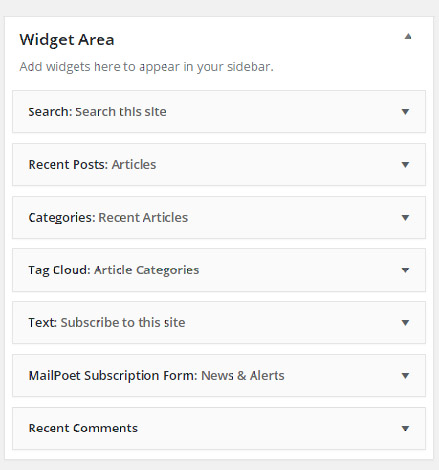
You will see something similar to the image above. Each of the blocks is expandable and there are things in there you can edit. There is a library of widgets available to you. You can select one and drag it into the widget area and position it in the list.
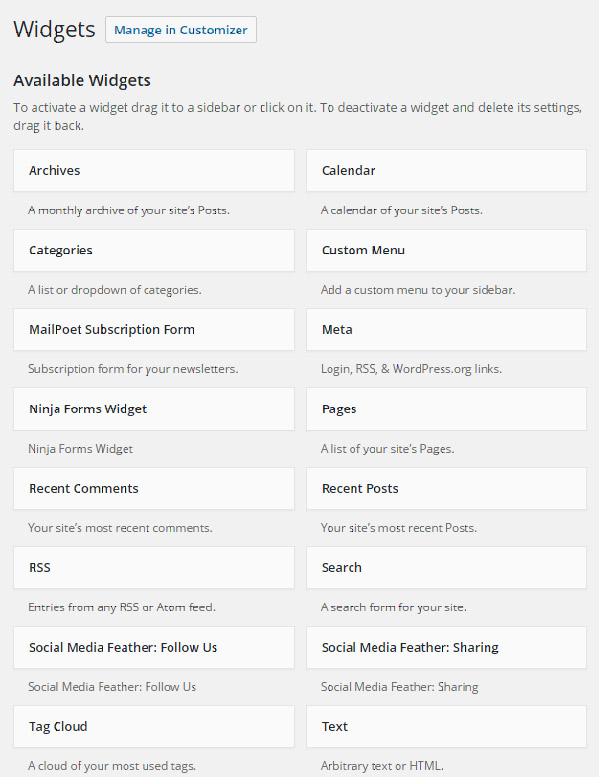
Precisely what is available in this list is dependent on your installation. Plugins frequently add to this list depending on which plugins you are using.
Quick example
On your screen locate the TEXT (arbitrary text or HTML) from your library select it and drag it into your widget area. Position it where you want to see it in relation to the other widgets.
2). Click on the small triangle to the right of the Text widget to open it. You will see this form. Write something into the title, and something into the content area.

3). Save it, and then view your website and look at the sidebar. In my case you can see my text has appeared in the sidebar.

Refinements and being more ambitious
Unlike the main content areas for pages and post you do not have a simple to use visual editor. So what happens when you want to put a picture into this space, or edit it when it is largely HTML text in there?
Editing an existing one
Simply copy all of the text out the widget area (I am assuming this is a text based one!). Open an empty post, switch to text view and paste the code into the post.
Now switch to Visual mode so you can no longer see the code, but can see graphics and text. Now you can edit it. Make your changes. Switch back to Text view, copy everything. Close the post, do not save it, you do not need it. Delete it.
Go back to Appearance, Widgets and open the widget you were working on and overwrite the content with the new content.
Save it and then view the website to make sure your changes have been correctly saved.
Creating a new one
Create the text and images in a post in the same way you would do this for a news item. Apply your formatting, bearing in mind that the space you are moving this to, is very narrow.
Switch to Text view, copy it and then delete the post.
Go to Appearance and then Widgets, grab a Text widget from the Available Widgets list and drag it into the Widgets area.
Open is and paste your code into the Content area. Where appropriate add something to the title.
Save it and then view your website to check your changes.
These are the methods I use when adding something to the sidebar and footer space when I am developing new sites.