This is a reminder for people that are new to the WordPress platform, and for those of you that have been using it for a while and did not notice the changes in the platform with regards to links and how to add or edit them a few months ago. My video tutorial covers the earlier version, so hopefully these notes will help to clear things up as I have had a couple of enquiries.
Another look at the Link Settings
When you highlight some text and click on the link symbol in the editing toolbar you will see something like this:
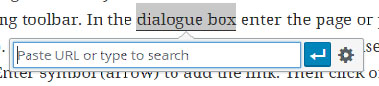
There is a box which says Paste URL or type to search. A white “return or enter” arrow and a cog symbol representing settings.
Generally you can do everything with this box if you wish to connect to something in your website. To open the full form you need to click on the cog symbol. Then you will see something similar to the image below.
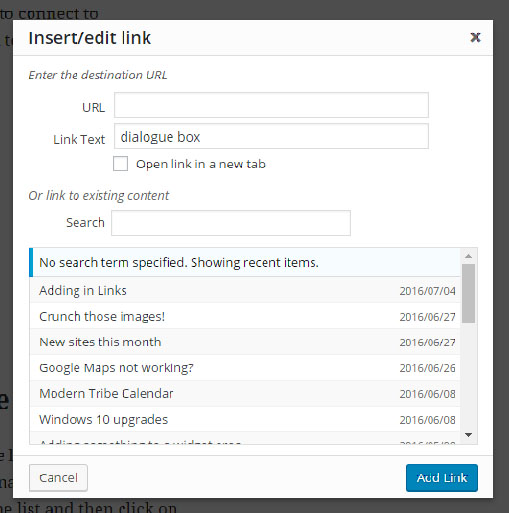
If you cannot see the items below the search box, then there will be a small triangle near the seach box, click on it to open the bottom part of the form.
Now let’s move onto the different types of links you may need to use.
Three types of links
- A link to content within your site
- A link to content somewhere else on the internet
- A link to downloadable content based on your site
A link to content within your site
Highlight the text you wish to make into a link. Click on the link symbol in the editing toolbar. In the dialogue box enter the page or post name where you want to go. A list will appear. Select the one you wish to use in the list and then click on the Enter symbol (arrow) to add the link. Then click on Publish/Update to commit the page to the server.
In this case WordPress knows what is in your site, so it is very easy to link to something. If you are using bookmarks or anchors (a point within a long page) you need to add them in manually.
A link to an external site
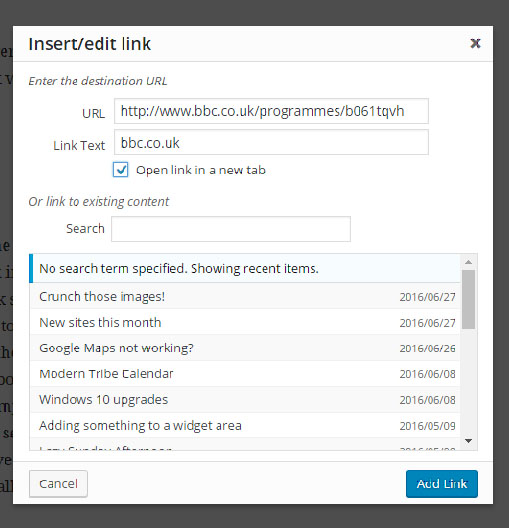
Firstly locate the site or page you want to go to and copy the URL (the bit that starts off http://….. ) Go to the page on your site where you want to add the link. Open it in the editor. Highlight the text and click on the link symbol in the editing toolbar. Do not click on the arrow symbol, click on the cog to the right of the arrow. This will open a form. Paste the full URL including the “http://” part into the top box. This is the physical link the user will go to. In the box below is the link text. Also paste the URL in there as well. If it is a really complicated URL you can shorten it in the box called Link Text. This text is what the user sees so it can be anything you wish in this field of the form. Lastly check the box which says open in a new window or tab. This step is very important otherwise clicking on the link will overwrite your site in the users browser. Finally click on Add Link.
See this example:
I really enjoy the Now Show, you can too by going to here: bbc.co.uk
In this example (assuming the link remains within the BBC website) it is more complicated than just http://www.bbc.co.uk. You do not have to share the full link with the user, provided that the destination URL in the form is correct. See my form below.
Links to downloadable Content
Very often you want to provide some information to a visitor in a downloadable format. You can do this by creating your marketing brochure, form or other media outside of your wordpress site, for example in MS Word, Publisher or some other application. Remember where you stored it (!) and also store a PDF version in the same place. This is important because PDF is a universal format that everyone can read. MS Word can only be opened by those users that have MS Word on their systems. – Which given the higher number of mobile devices around is not everyone. I frequently get asked if I can edit a PDF, while it is possible it is very difficult, which is why it is very important to store your PDF with your original source document.
Next upload it to the website. Here it sits in the media library until you wish to use it somewhere.
Add your chosen text to the page where you want the document link to be added. Highlight the text and press Control (Ctrl key) + C for copy. This copies your text into a memory in your computer. Next click on the add media button. Locate the document you want to add and then click on insert.
This takes you back to your editing page. What has happened is the text you highlighted has been overwritten by the document title. First click on the Enter icon (white arrow on a blue background) to commit the link to the page. Then click again on the link which reopens the link editor. Now click on the Cog (Settings icon) and you will open the form details for the link.
Highlight the text in the box which is titled Link Text and press Control (Ctrl) + V (this is the shortcut for paste). This will replace the document title with the link text you originally wanted to place in this space.
Check the box for “Open Link in a new tab”.
Then click on Add Link to commit your changes to the page and finally update the page to write your changes to the server.
Things to think about
Links should be intuitive as far as possible. So rather than say “To download this document click here” It is better to say “…follow this link to download this document“. In the latter case the link indicates what it is about. Click here does not say anything, and for some visually impaired readers links are sometimes gathered together in their special browsers, so a list of 5 “Click here’s” is not very useful.
Additionally remember that a link contains two pieces of information. One is what the user sees and the other is where it goes. If you have a really long and complex URL you do not need to expose it all in the part that is visible to users. However you have to use it in the URL field of the form.
Always test your links after you have updated the page. Make sure they work as you want them to work.
Also bear in mind that where you link to something off of your site the owner of that content may remove their page or site. So check from time to time, and also listen to what your users are saying. If someone says something is broken please remember to fix it.