This is only of interest to Divi template based websites. If you use this facility in your template and it is not Divi based, take care to check what it does before you accept using it. Different templates work in different ways.
Many of the latest Divi based designs I have been building for both Home-Starts and other groups have at least one news page, often more than one. For example a summary on the home page of the latest six news items is useful, and a fully featured news page as well for everything.
Filtering News
You can do this on other sites, but within the Divi environment it is very easy to use: you can have a fundraising page, and at the bottom of the page have a Fundraising blog. This is an automatic feature where any new posts which you categorise as Fundraising will appear there. They will also change over time as you add more content.
The benefit of doing this is the dynamic content or news is highly relevant to the fixed content on the page, and you did not need to do anything, it all happens automatically.
We can further enhance this by adding a featured image to a post. If you do this you can achieve a news page that looks like this. (Click on the image below will take you to the page).
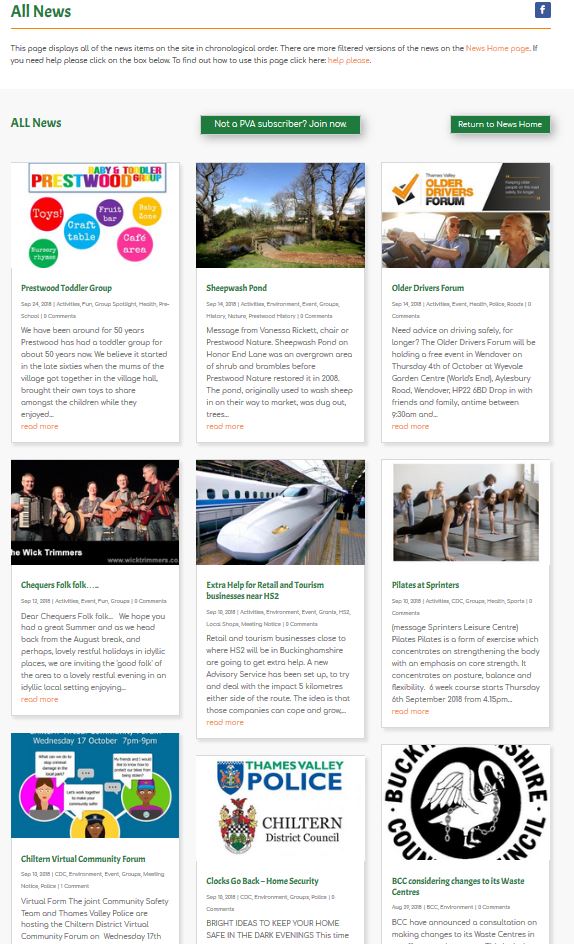
Each news item or post has an image associated with it. Each is displayed in three columns. The news items can be opened by either clicking on the image, the title or the read more link.
To use this layout you may need to make some changes to your news page blog section. Contact me if you need to do that and I can advise.
If you create your post as normal, and as a final step prior to publishing it assign a Featured Image in through the settings in the side bar for posts, (at the bottom right of the conventional editing screen, for new Gutenberg editors 🙂 …. those brave enough to try it, you need to select the document option vs Block option in the sidebar to see the Featured Image option.
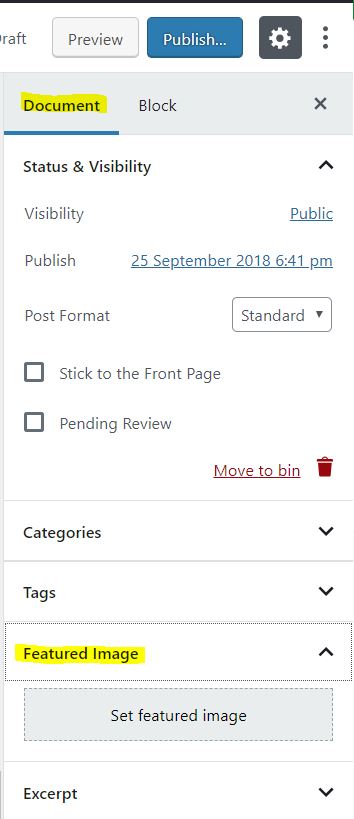
This image is from the new WordPress editor Gutenburg coming out in version 5 of WordPress. Choose Document, then look down the list for Featured image.
If you are using the old or current editor look down the options on the right of your screen and right at the bottom you will see Featured image.
In both cases choose set featured image and upload it to the library or choose something that is already there. Some tips on the selection of an image when using Divi.
Choose a Landscape image
The choice of image is moderately critical because if you look closely the image is cropped in the magazine style layout. Only when you click on the post or news item to expand it does it expand and become uncropped.
I recommend using the following size image 800px x 533px will generally yield a good result irrespective of how you are viewing the page. It is worth making sure your chosen image is virtually pasted onto a white background of those dimensions even if there is white space showing through and scaled to fit.