This question popped up a few days ago. It is an interesting one. It is useful to think about different aspects of the system and which ones you can control and what could go wrong if you are not adequately protected.
The following is an easy to follow set of checks to make sure your mail is secure.
There are three main elements:
- your computer and the application that runs on it that is used to access email. That could be a web based application running in the browser, Outlook, Thunderbird, MacMail, Android phone, smart phone etc or any one of many other mail programs.
- Secondly there is the link that goes from your computer to the internet and finally to the mail server in the hosting somewhere. This may use WiFi, or a hard wired connection in the local area near your computer.
- Finally there is the mail server itself.
It is worth giving the other end some thought, in other words your recipients computer. But here you exercise no control at all. But do be aware of it.
Looking at your computer first
Do you use a password to login to your computer? Does anyone else use it. and do they have a different password and account on your computer, or do they share yours?
Ideally, to be secure at your local end, you need to log into your computer using a unique username and password (or equivalent) combination. Your password should be complex and not easy to guess. Believe it or not I have even recently come across systems that use the following password: “password” yes it does happen and these systems are vulnerable to attack.
Next; do you have a high quality Anti-Virus personal firewall running on your system? If you do then it is unlikely you can accidentally load some virus or malware onto your computer that could sit in there lurking watching and reporting everything you do. I have found at least one computer in a charity organisation with a keyboard scanning virus on it. It was there because they were using no AV Security on their computer system. I personally use and recommend Eset Smart Security. I am not affiliated to them, but it is something I have used for over 20yrs. As a charity you can get around 50% discount. Just see this item to see that even I can get caught from time to time, this is an example of where your AV Security product has caught something (which in this case was a good thing!). Don’t use free AV it is a false economy that could land you in a lot of trouble.
We will return to your computer in a moment
Securing the Communications
I am not aware of any mail system that cannot be secured as far as the communications are concerned. When the email application communicates with the server it can handle that transaction in a number of different ways. The messages including your email and your user name and password to access the mail box can either be sent over the wire, or over Wi Fi in plain text or in an encrypted format. You really don’t want to be sending your email address and password in plain text to the server.
Why?
Anyone using a “Sniffer” that is the data communications equivalent of a wire tap can capture your email address and password. You don’t know anyone has done this, and it can be done at any point between you and the server providing the person has access to the data stream.
The most common examples of this that have been well documented and on the TV are wireless Access Points, particularly free ones. It is very easy to set up a wireless access point and offer free wifi. Most of you have done this at home. It is also very easy to insert a device in the data stream where everything is analysed and captured if you know what you are doing. You can then use a program to filter the captured data and identify user names and passwords, and mail content as well. So for this reason alone, if you use Wireless Access points when you are out and about then you need to make sure your mail is encrypted. If your mail is encrypted, it does not matter if a third party has captured your mail, user names and passwords, because they cannot easily decipher it and use it.
Why would anyone be interested in looking at my mail?
The main reason is because access to someone mailbox allows a third party to assume your identity. Most of your passwords to other things like you bank will be recoverable through your email account. This is why hackers are interested in them. This is reason enough not to use the password; “password” on your account and use something like shSUdxal&#!23d9a as a password.
How do I secure my mail communications?
To make sure the communications channels you use to both send and receive mail over the web are encrypted we need to return to your computer.
I am going to use Outlook as an example of what to look for, but the port numbers I refer to below are in common use in any mail systems and also are supported in practically all mail programs.
Don’t leave it to Microsoft without checking
Many mail systems have something called discovery on them, and when you set up mail in Outlook Microsoft uses this to try to configure your mail program. We are all used to “wizards” helping us to configure something, and mail is a bit complicated, and let’s face it, it would be nice if something could handle it for us.
Mozilla’s Thunderbird (a free Outlook like) mail program does much the same thing. As do many other installation wizards.
The problem is with some shared servers, the way mail works can be quite complicated, and not necessarily associated with your domain. The “Wizard” may come up with a compromised set of parameters that use non secure connections to the server. It tells you it has figured everything out, but you are left with a mail system that is communicating in plain text, not encrypted.
How do I check?
For Outlook users you can do the following checks:
Look for Accounts and Account settings. For recent versions of Outlook you can find it under the top level Menu item File. In older systems you will need to look around for it.
When you find it for EACH mail account (you need to work through all of them), highlight one and click on Change. This will open a form with the basic settings on for your mail. In the bottom right corner is a box which says “More Settings”. Click on that. Another form pops up, called Internet E-mail Settings this one has 3 or more tabs on it. Choose the Advanced tab and open it. You will see something like the image below, with the form on the right.
(click on the image below to expand it)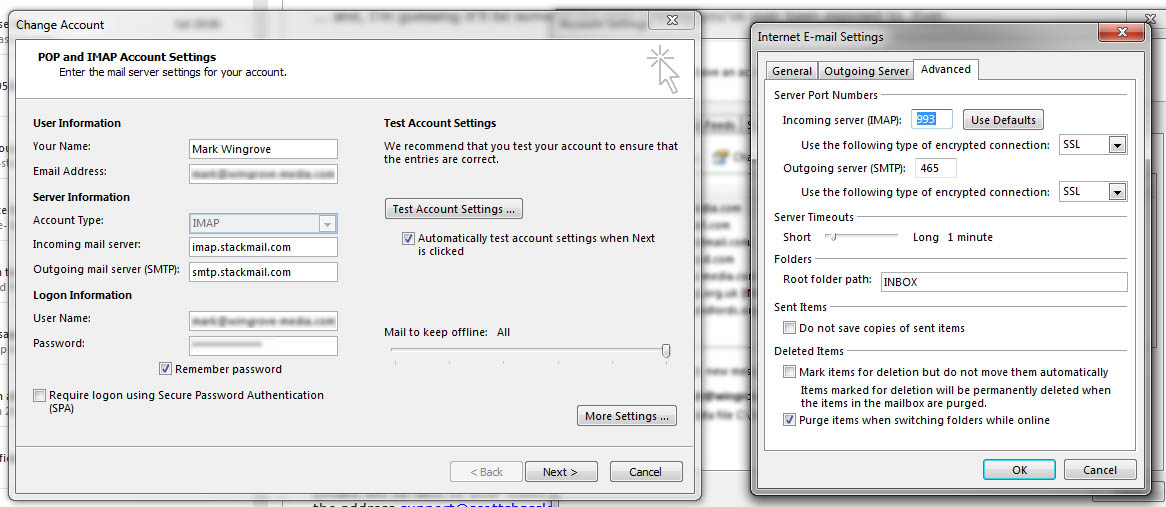
In the form on the right there is a Port number (993) for the incoming mail server and another port number (465) for the outgoing server. Your system may be different to this, because I am using IMAP, you may be using POP3 which is a different system that will use different port numbers.
More importantly there are two boxes that show SSL in them. SSL means Secure Socket Layer, it is a protocol that encrypts data flowing through a communication channel, in this case email.
To make sure that your email is being sent and received in an encrypted format you should see Incoming ports as 993 (IMAP) or 995 (POP3) and SSL selected. And for outgoing mail you should see 465 (IMAP) or 587 (POP3) and SSL or TLS selected. SSL is preferred, but may find some service providers block port 465 and you can only communicate over port 587 which is normally used for none secure communications. TLS starts a negotiation to use encryption between the mail client and mail server.
What you don’t want to see is NONE in the pull down box or unchecked SSL as in the case below. This is a POP3 account with encryption turned off. You may find that your Wizard if you used it, has configured your mail like this.
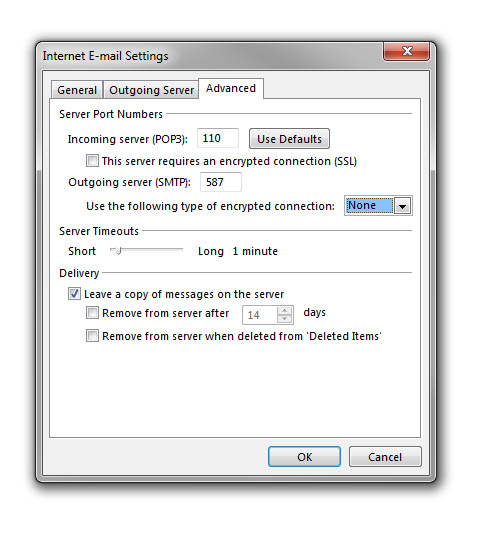 You can see in this case that no SSL is used on the incoming data stream and no encrypted connection is used on the outgoing one. This is not a desirable set up!
Moving to the (remote) Mail Server
This is buried deep in a data centre somewhere which will have secure passes to access the control rooms and building. We have to place ourselves in the hands of the hosting company here and trust them to take security seriously.
What we need to do is make sure the parts of the system that are exposed to us are properly configured.
OK, understood all of that, but I have a problem…
If you have checked your system and have identified a problem with your mail settings drop me a line and I will let you know what you need to do. Send me an image of the form as in the case above (internet Email Settings) so I can see how your mail is set up.