Some of my videos are now out of date following some changes made by the WordPress development team in the latest version of WordPress.
All of the sites I have built should update themselves to the latest version. There are one or two exceptions where I have a template that has not been upgraded, but for the rest of you, you should be on the latest version now.
The key changes that I have noticed are listed below. They are all improvements on the way WordPress works, so do check them out.
Password changes
You used to have to create your own password in WordPress. This was a weakness because people could enter password123. (Which is obviously a weak password!). One of the plugins I use forced any new passwords to be strong, which got around the problem. WordPress has gone a step further.
If you wish to change your password you now get a screen like the one below.
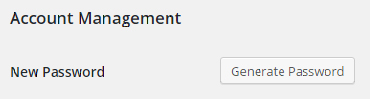
If you click on the Generate password button you get a screen that looks similar to the one below. The password is based on a pseudo random seed which means you are unlikely to see the same password again. Note the password is very complex and not easy to remember. So you will need to write it down somewhere.

The password is already highlighted for you, so you can right click and save it somewhere.
I want to choose my own!
I have already had one instance where someone wanted to set their own password. To do that overwrite the text in the blue highlighted area. The message underneath will tell you how strong your password is.

When you are happy with your password, simply hit the Enter key to save it. Do however remember to save it somewhere. (See, I told you that password123 was weak!)
Make sure any password you use is STRONG! and note that because you only enter the password once, then it will not be tolerant of spelling mistakes. The old system required you to enter the password more than once to verify it was correct.
Logout every where
If you have accessed a site from several computers, then you may remain logged in on one of them. It is always desirable to logout from all of the computers when you have completed your edits. You can do that by going to Users, (Your account or the person you want to logout), and click on the following button below.

Editing links
I have seen quite a few issues with editing links that often depend on the browser being used. In general I never use Internet Explorer to do anything other than check a site, for editing I generally use Chrome or Firefox.
Where you have created a link in a page, either to media located on or off your site, or to a page, if you place your cursor on the link and click (while in the editor) then a pop up appears that allows you to edit the link and some of the parameters. Just click on the pencil symbol, you will be familiar with the screen that comes up.
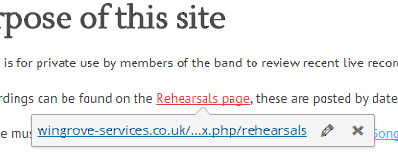
This is a very useful change as I found that it was sometimes difficult to select the whole link text before editing it. This method is much easier.
Site Identity
There is another tutorial covering how to add an icon to represent your site. Follow this link to go there: The Favicon and it’s friends